Assignment 2 Movie Trailer about an island with a hidden civilization with scientist performing experiments and a monster is on the loose!!!
Thursday, 21 November 2013

Monday, 16 September 2013
Assignment 1 - Submission
Assignment 1 : http://www.youtube.com/watch?v=SCyq7PZfT6k&feature=youtu.be
The H4 Island is an unknown island, a man lost at sea was shipwrecked and found this island with a several man made structures but no-one was found, he has found himself alone wondering the mysterious island discovering new things along the way.
This first assignment was very difficult yet very interest to make our own environment and scenes. Although Cryengine has been a pain by crashing a lot I have managed to get my scenes of H4 within my island through.
Crysis Folder: https://www.dropbox.com/s/mv5lxot8vs0k6t8/z3377894_v_3_5_3.rar
This first assignment was very difficult yet very interest to make our own environment and scenes. Although Cryengine has been a pain by crashing a lot I have managed to get my scenes of H4 within my island through.
Crysis Folder: https://www.dropbox.com/s/mv5lxot8vs0k6t8/z3377894_v_3_5_3.rar
H4
Strategies of concealing and revealing of my letter (H) number (4) combination

Bridge (H) and the dead trees (4)

The 4 houses create a H shape footpath

A boat dock with 4 wharfs and a featured docking area

Again a bridge (H) and behind it a island shaped as a 4

4 shaped island close-up

4 houses with a wire connection the two middle houses together (H)
Monday, 19 August 2013

Monday, 12 August 2013
Week 3 - Picturesque
The Picturesque Project!
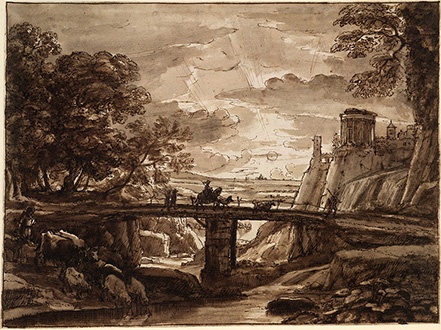
Claude Lorrain
 |
| http://www.berkshirefinearts.com/uploadedImages/articles/218_Claude-Lorrain-Lands789640.jpg CryRepresentation  |
William Gilpin

CryRepresentation

Capability Brown
 |
CryRepresentation

Humphrey Repton
 |
CryRepresentation

J.M.W. Turner




Monday, 5 August 2013
Week 2 - Getting started
Landscapes
Residential buildings along the valley close to water or used along a mountain side
 |
| Reference: http://www.wallsave.com/wallpapers/1920x1200/couple-landscape/966570/couple-landscape-nature-landscapes-hd-high-definition-966570.jpg |

Detail of valley
 |
| http://www.wallgc.com/download/18131/landscapes-bridges-hdr-photography-original/ |
Rice fields sustainable food source
 |
| http://www.phoenixvoyages.com/newsletter_2011/june/la_une_eng.png |

"Virtual implement of buildings on an island"
 |
| http://static.hothdwallpaper.net/51da9db757f6076797.jpg |

Ideas of human impact and living
 |
| http://www.cappadociatoursguide.com/images/category/cappadocia-tours/ankara-cappadocia-tour/ankara-cappadocia-tour-3.jpg |

Landforms and environmental texture
 |
| http://www.fengzhudesign.com/blog/fzd_landscapesB.JPG |

Fraps 5 Vantage points
Bird's Eye

BigFish

TheView

Stones

Portland

Custom Texture
Original image from google
 |
| http://www.asisbiz.com/Photos/Sand/images/Textures-Beach-Sand-Closeups-02.JPG |

Monday, 29 July 2013
Week One - Introductory
Introduction:
Welcome to Sandbox CryEngine!!!
Getting Started and Folder Structure:
(5 things about the sandbox folder structure.)
1. Game file the .pak files can be opened or extracted for sandbox
2. System config. file is for making comments by duplicating the file and input comments then it can be reloaded and reopen what you have changed.
Welcome to Sandbox CryEngine!!!
Getting Started and Folder Structure:
(5 things about the sandbox folder structure.)
1. Game file the .pak files can be opened or extracted for sandbox
2. System config. file is for making comments by duplicating the file and input comments then it can be reloaded and reopen what you have changed.
3. Tools file - used to export textures install the exporter plugins for sandbox to allow 3DSmax, Photoshop and Maya. You can go to SDK.crydev.net to look at guides, solve problems and troubleshooting. Go to setting manager.exe once and make sure that it has a green light, if not you need to link your file. The research compiler makes sure everything is working.
4. Install CryTIF Plugin for photo to export textures into sandbox.
5. Crymax tools load a copytomax.bat opens a dos window type c and it will run automatically, which creates a new useful menu in sandbox.
Overview Of The CryENGINE 3 Sandbox User Interface:
(10 tips and tricks related to the Sandbox User Interface.)
1. Views can be changed on different tabs or windows.
2. Resolution can be changed by right clicking it if you want to make a certain scene much clearer.
5. Crymax tools load a copytomax.bat opens a dos window type c and it will run automatically, which creates a new useful menu in sandbox.
Overview Of The CryENGINE 3 Sandbox User Interface:
(10 tips and tricks related to the Sandbox User Interface.)
1. Views can be changed on different tabs or windows.
2. Resolution can be changed by right clicking it if you want to make a certain scene much clearer.
3. In the search bar you can type in a name to isolate entities.
4. lock selection means that you can only work on the entities selected.
4. lock selection means that you can only work on the entities selected.
5. The terrain button beside the speed tabs toggles collision to terrain.
6. Crtl-G spawns you in game.
7. Console allows you to input comments, if you want to turn off and on things also it shows errors etc. you can edit variables in the console window.
8. In game editor objects can be exported as .Obj to other programs under file tab.
9. Prefabs selections instances.
10. All panels is in the "view" tab.
Customizing The Editor:
(5 ways you might customize your sandbox editor setup.)
1. Opening multiple windows can be dragged and dropped into the same window and is automatically combined with tabs on the bottom which makes things much cleaner and easier to work with.
2. Tools > Customize keyboard. opens a customize window here you can create your own tool bar and add comments (or you can right click at the bar you can open the customize window.)
3. In the customize window you can assign your own hot keys.
4. Tools > Preferences customizes your interface further. eg. changing panel colour, backup, auto backups, changing viewports options, etc.
5. Tools > configure user commands puts a panel on the interface creates a macro and puts all your tools that you use.
Viewports:
(3 different ways of moving around your level.)
1. Standard first person shooter W, S, A, D. right-click looks around, middle-click pans, hold shift to move faster, mouse wheel to move forward and back. Alt + middle button orbits position.
2. speed can be changed to move faster around your environment.
3. Q = turns on and off terrain collision.
User Interface Panels - Overview:
(5 shortcuts or buttons, and each of their functions.)
1. Ctrl + D = opens select objects panel, finds specific objects within the map.
Reflection:
My thoughts on this weeks lecture shows how powerful a virtual engine can create something that you can put your thoughts ideas and concepts into a virtual trailer. A trailer should capture ones attention within the first several seconds of what you are trying to convey so by achieving that to my own work may be a challenge.
6. Crtl-G spawns you in game.
7. Console allows you to input comments, if you want to turn off and on things also it shows errors etc. you can edit variables in the console window.
8. In game editor objects can be exported as .Obj to other programs under file tab.
9. Prefabs selections instances.
10. All panels is in the "view" tab.
Customizing The Editor:
(5 ways you might customize your sandbox editor setup.)
1. Opening multiple windows can be dragged and dropped into the same window and is automatically combined with tabs on the bottom which makes things much cleaner and easier to work with.
2. Tools > Customize keyboard. opens a customize window here you can create your own tool bar and add comments (or you can right click at the bar you can open the customize window.)
3. In the customize window you can assign your own hot keys.
4. Tools > Preferences customizes your interface further. eg. changing panel colour, backup, auto backups, changing viewports options, etc.
5. Tools > configure user commands puts a panel on the interface creates a macro and puts all your tools that you use.
Viewports:
(3 different ways of moving around your level.)
1. Standard first person shooter W, S, A, D. right-click looks around, middle-click pans, hold shift to move faster, mouse wheel to move forward and back. Alt + middle button orbits position.
2. speed can be changed to move faster around your environment.
3. Q = turns on and off terrain collision.
User Interface Panels - Overview:
(5 shortcuts or buttons, and each of their functions.)
1. Ctrl + D = opens select objects panel, finds specific objects within the map.
Reflection:
My thoughts on this weeks lecture shows how powerful a virtual engine can create something that you can put your thoughts ideas and concepts into a virtual trailer. A trailer should capture ones attention within the first several seconds of what you are trying to convey so by achieving that to my own work may be a challenge.
Subscribe to:
Comments (Atom)